How to block a user, community, or instance
The steps and screenshots on this guide page correspond to the default desktop website interface. You can likely achieve the same results on other apps or alternative UIs.
🛠️ Help Needed
The Piefed section of this guide page is incomplete. If you are familiar with Piefed, please consider contributing to this guide page.
Blocking a user
Lemmy
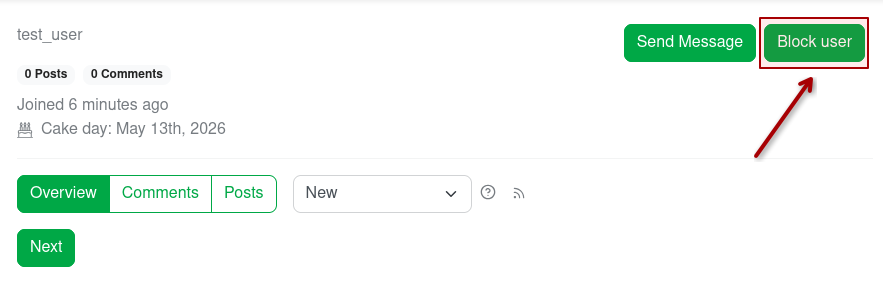
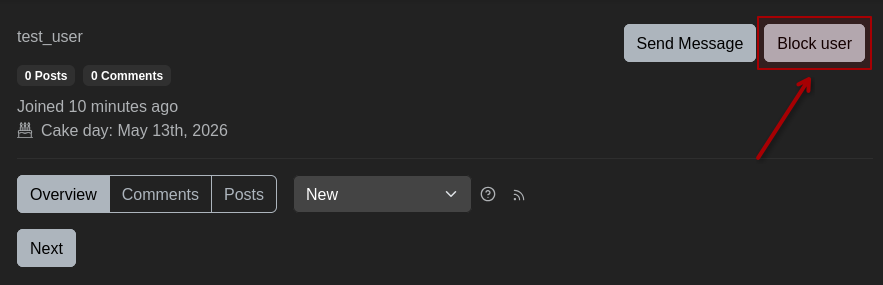
To block a user on Lemmy, open a user's profile page and select the "Block user" button.
Effects
When you block a user, you will no longer see their posts or comments. They will also not be able to send you private messages. However, they will still be able to see and reply to your posts and comments. In some version of Lemmy, you may also still receive notifications from them.
Exceptions
You can still see posts from blocked users if you go to a post over a direct link to it.
Local Admins can not be blocked.
PieFed
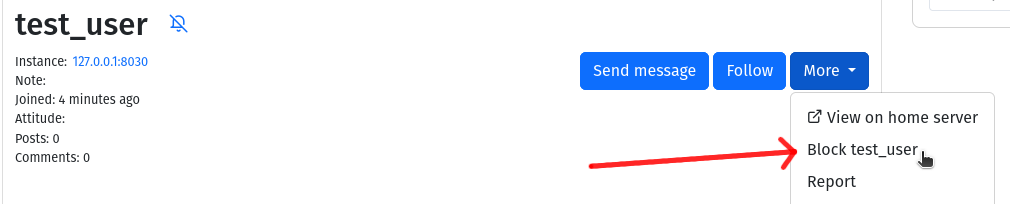
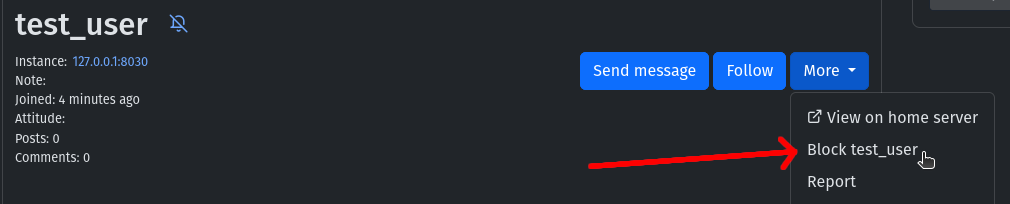
To block a user on PieFed, you can do it one of three ways. The first is very similar to how it is done on Lemmy; navigate to the user's profile page, select the "More" dropdown to the right of the username, and select the Block option.
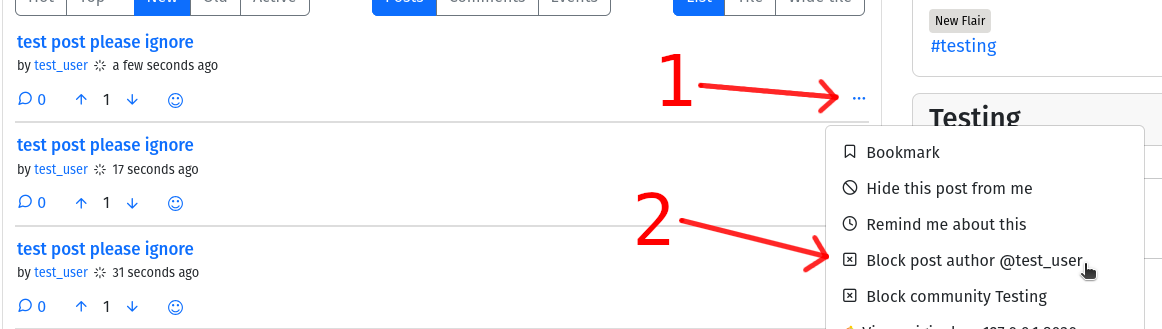
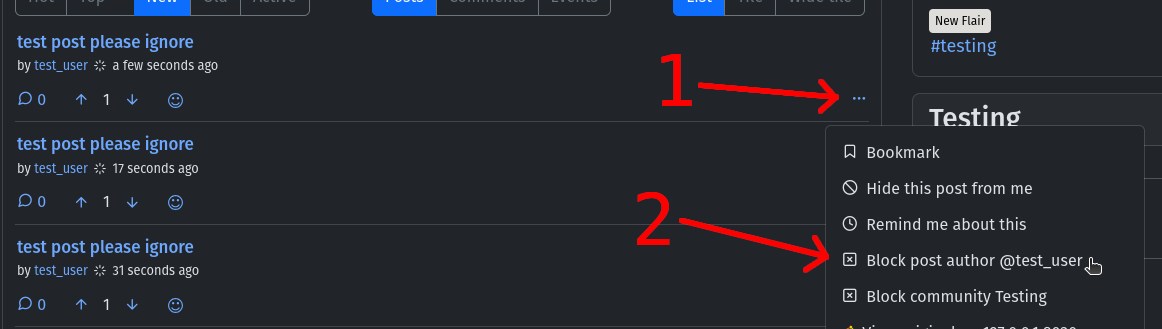
Another way to block a user is to open the three dot menu on a post or comment that user has made and select the Block option.
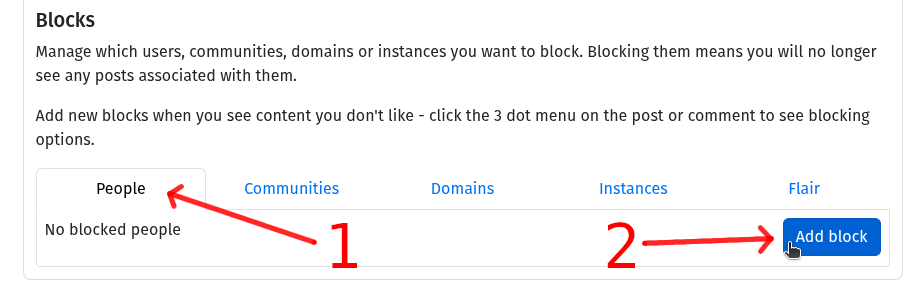
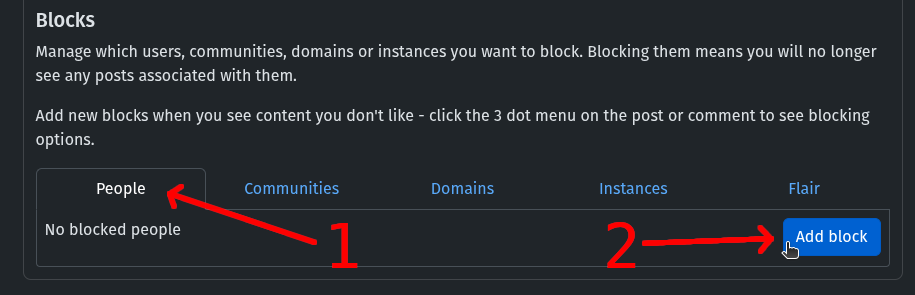
The final way is to navigate to your user settings by clicking the gear in the upper right and selecting the Blocks & Filters tab. Then, scrolling down, you can manage all your blocks in one place, users being one of the tabs there. You can both add and remove blocks from this page.
Blocking a community
Lemmy
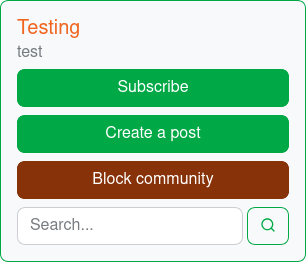
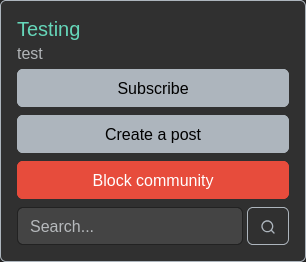
To block a community on Lemmy, open the community page and select the "Block community" button in the sidebar.
Effects
When you block a community, you will no longer see their posts or comments. Even if you are going to a user's profile page, you will not see their posts or comments if they are from a blocked community. You will also not be able to see the community.
PieFed
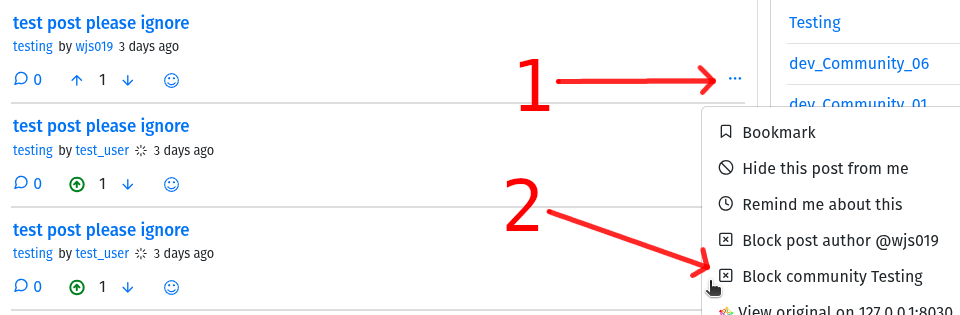
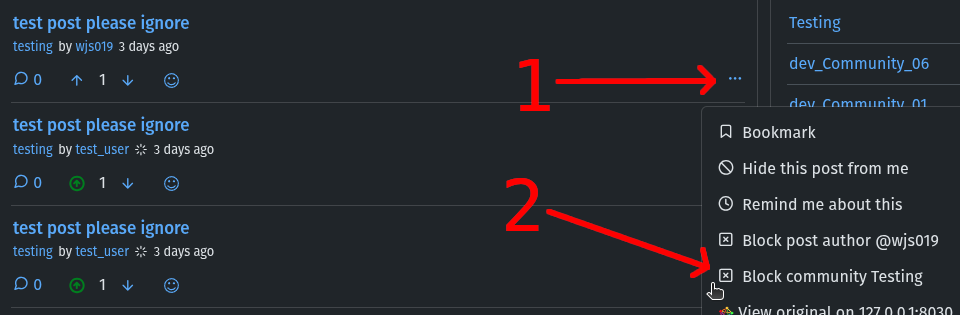
Similar to blocking users in PieFed, there are two ways to block a community. First is that you can open the three dot menu on a post in your timeline and choose the appropriate Block option.
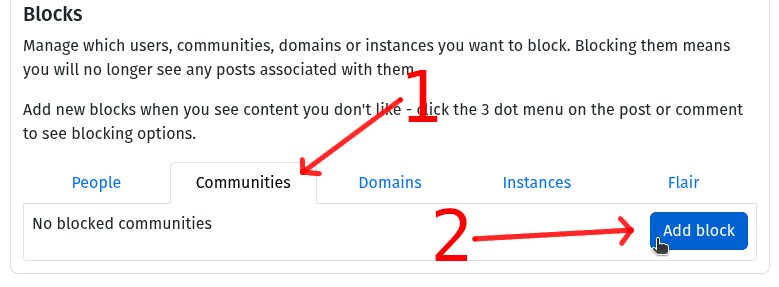
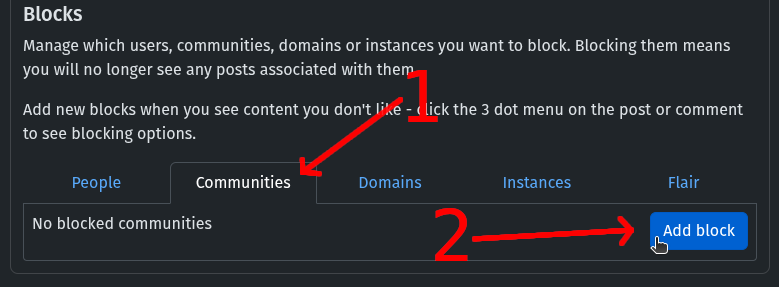
The second option is to add a block from your user settings on the Blocks & Filters tab. Select the Communities tab in the Blocks section and then add and/or remove blocks as you wish.
Blocking an instance
Lemmy
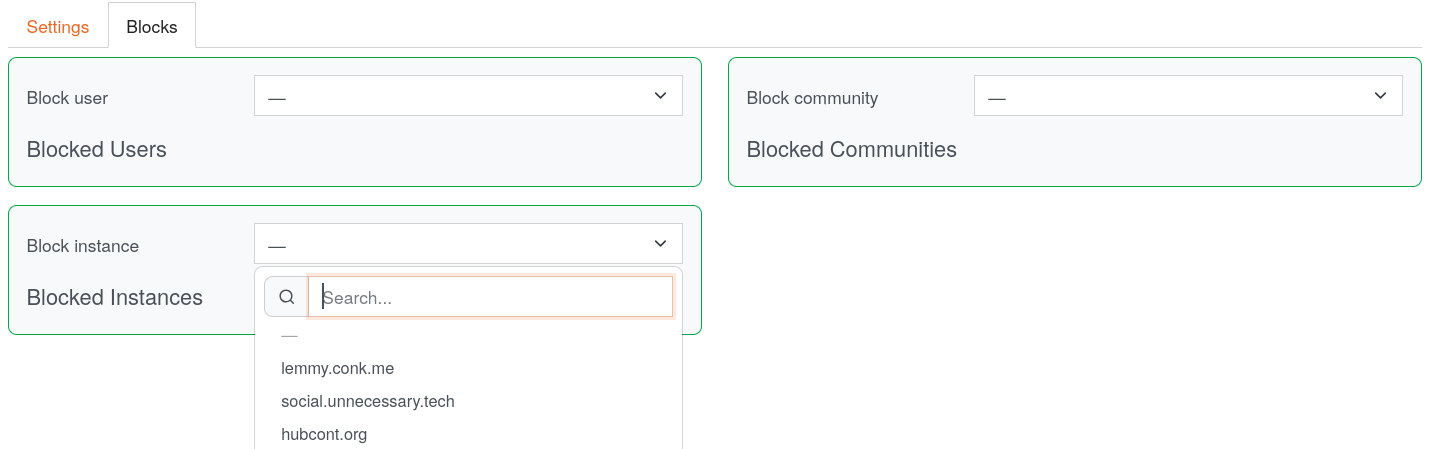
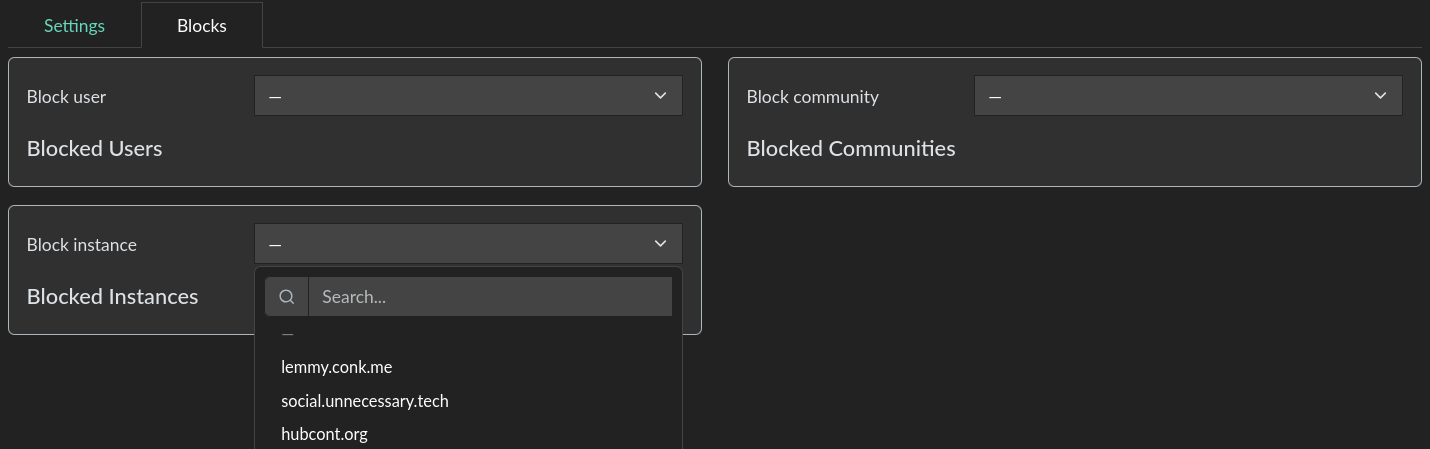
To block an instance go to your profile settings and click on the "Blocks" tab.
Then click on "Block instance" and enter the instance domain you want to block.
Effects
When you block an instance, you will no longer see their posts or comments. You will also not be able to see the communities or users from that instance. You will also not be able to see the posts or comments from users on that
Exceptions
You can not block your own instance.
PieFed
Similar to blocking communities in PieFed, there are two ways to block an instance. First is that you can open the three dot menu on a post in your timeline and choose the appropriate Block option.
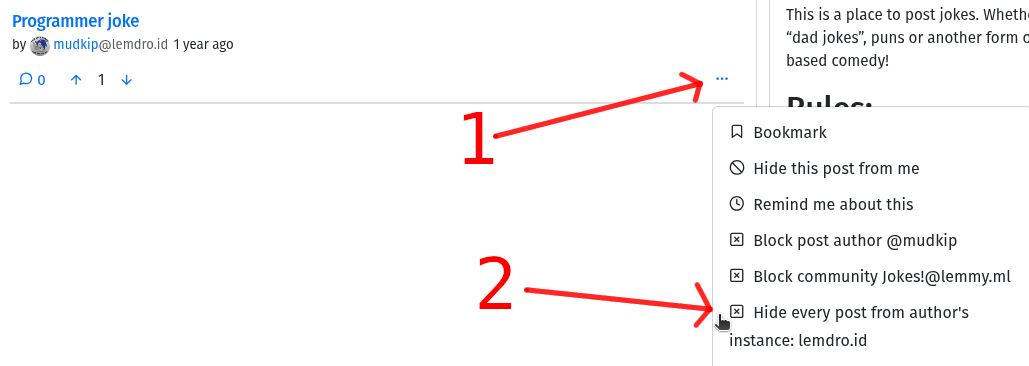
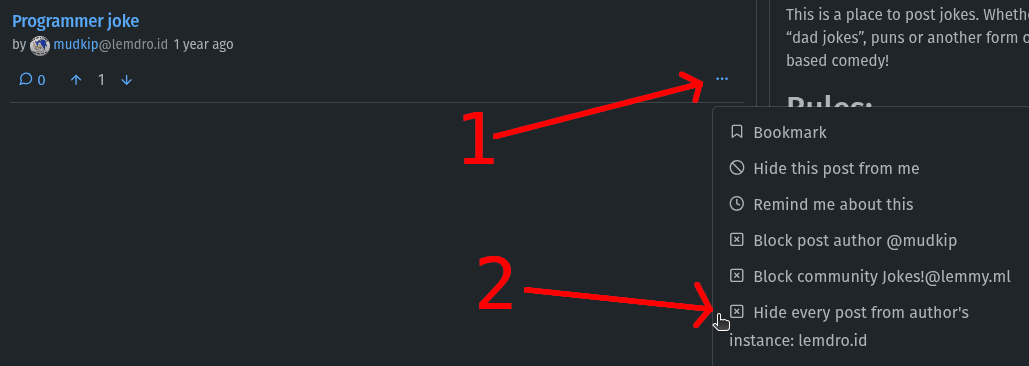
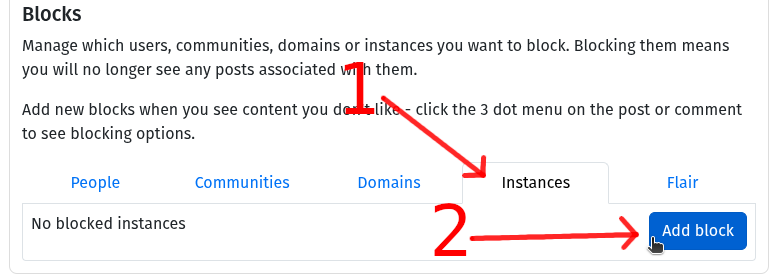
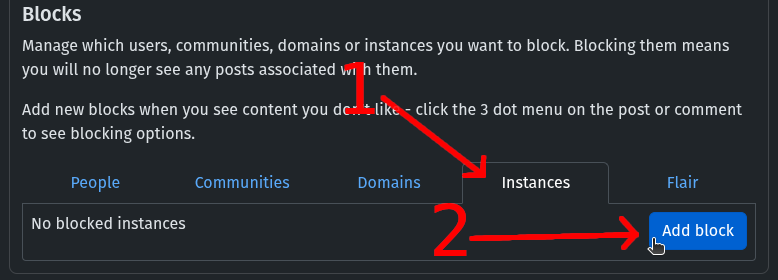
The second option is to add a block from your user settings on the Blocks & Filters tab. Select the Instances tab in the Blocks section and then add and/or remove blocks as you wish.
Hide single posts
Lemmy
To hide a single post, use the three dots button on the post and select "Hide post".
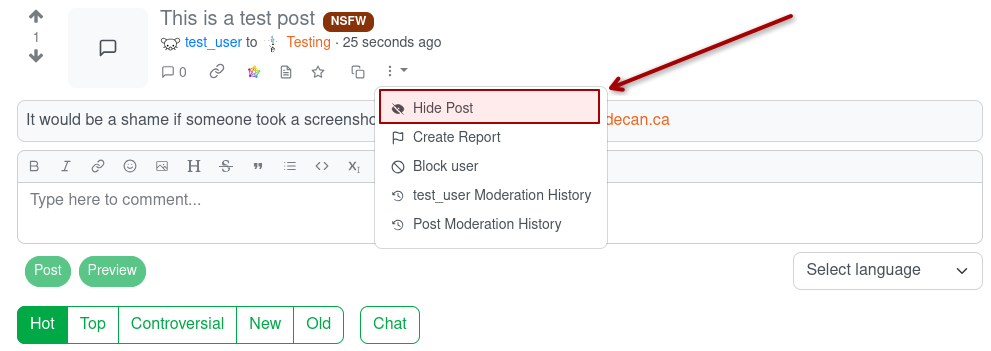
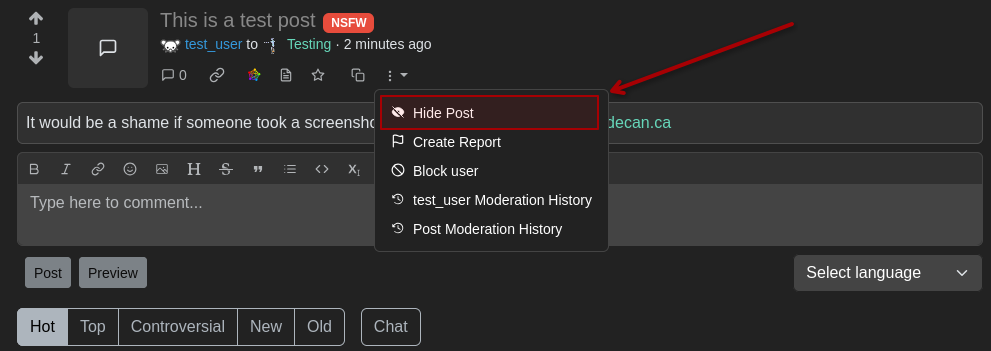
Hide a post on Lemmy
Effects
When you hide a post, you will no longer see that post. You can still see the comments on the post, but you will not be able to see the post itself. You can also still see the post if you go to the community page or the user's profile page.
Show / Hide hidden posts
To show hidden posts find the "Hidden post" you want to show and click on the three dots on the right side of the post. For example over a direct link, in the community page, in your feed, or in the user's profile page.
When you want to find a hidden post in a community page or in your feed you need to enable the option to show hidden posts.
When the toggle is set to this option, hidden posts will not be displayed:
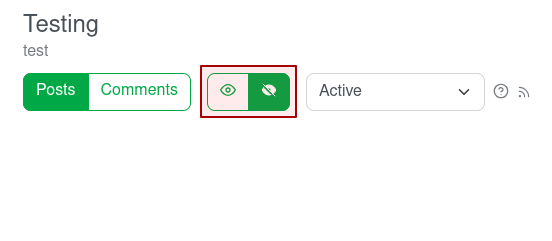
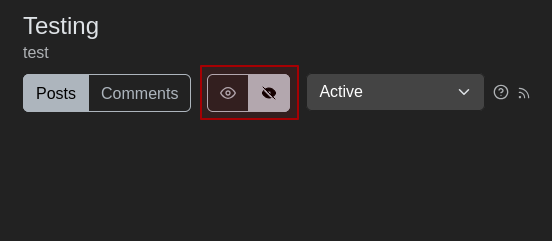
Only display non-hidden posts
When the toggle is set to this other option, it will display all posts including those that you have hidden:
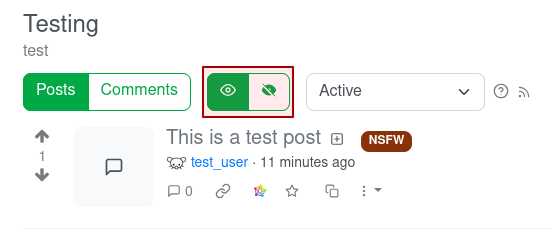
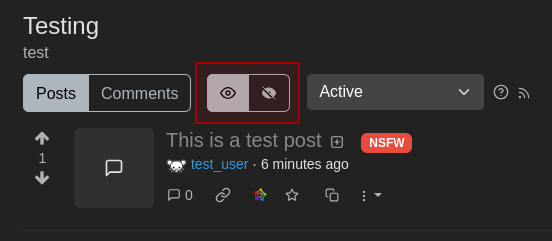
Display all posts, including hidden posts
PieFed
To hide a single post, use the three dots button on the post and select "Hide this post from me".
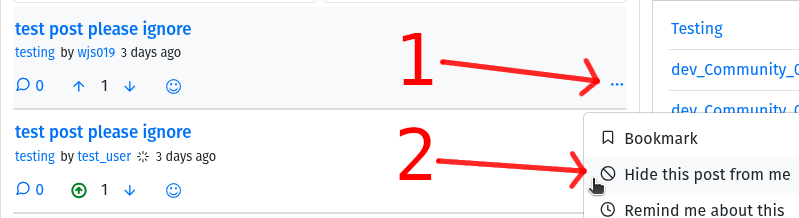
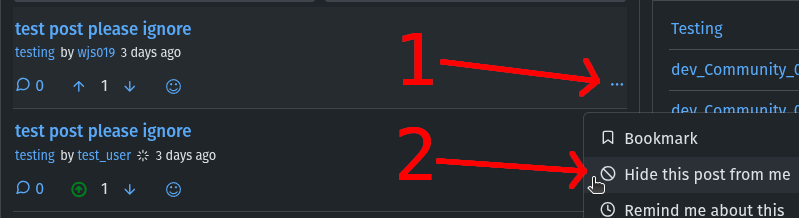
Hide a post on PieFed
Unhiding posts
To unhide a post in PieFed, expand the Account menu at the top of the screen and select "Hidden Posts" to see a feed of all the posts you have opted to hide.
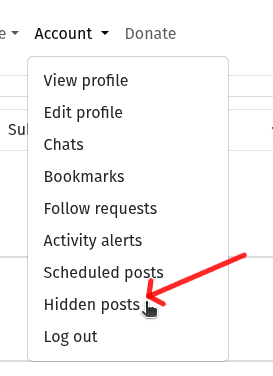
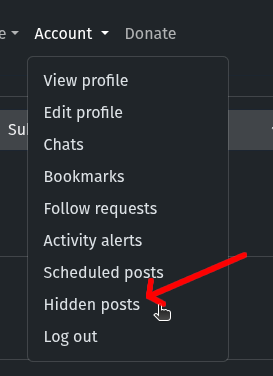
View your hidden posts on PieFed
Then, you can unhide the posts using the three dots menu, this time selecting "Stop hiding this post from me"
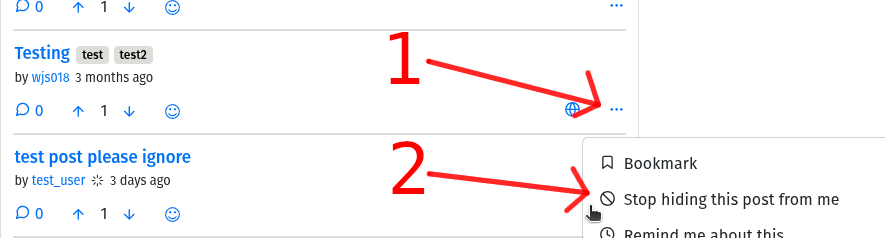
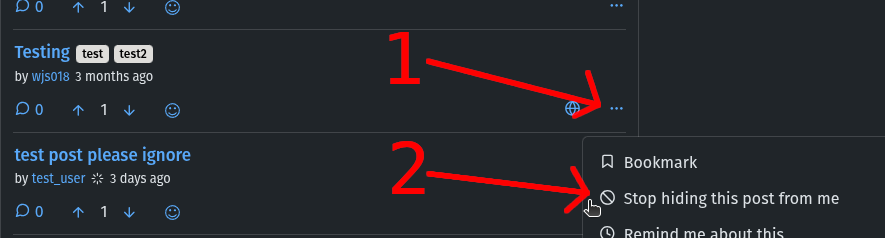
Unhide a post on PieFed